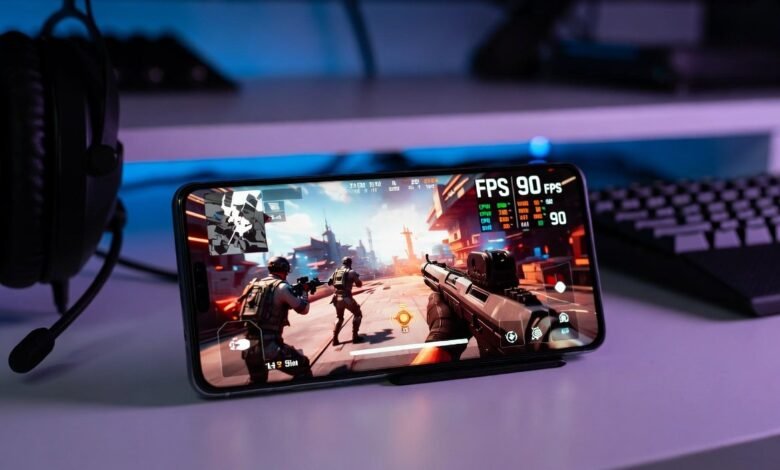
Android gaming has become more popular than ever, with millions of people playing mobile games every day. From casual puzzle games to competitive multiplayer titles, players want smooth gameplay, faster loading times, and fewer interruptions. However, lag, overheating, low frame rates, and battery drain can affect the gaming experience.
The good news is that you can improve gaming performance on many Android phones by adjusting a few settings and following simple maintenance practices. You do not always need an expensive gaming smartphone to enjoy your favorite games.
In this guide, you will learn practical ways to improve gaming performance on Android devices.
1. Close Unnecessary Background Apps
Background applications use RAM, processor resources, and sometimes internet bandwidth. When too many apps run simultaneously, your phone may struggle to deliver smooth gameplay.
Before starting a demanding game, close applications you do not need, such as social media apps, browsers, and video players.
You can also check your phone’s battery or app settings to identify applications that consume excessive resources.
Tip: Avoid using aggressive task-killer apps. Android already manages background processes, and repeatedly forcing apps to close may sometimes reduce efficiency.
2. Enable Game Mode
Many Android smartphones include a built-in gaming feature. Depending on the manufacturer, it may be called Game Booster, Game Mode, Gaming Hub, or Game Space.
These features may offer options such as:
- Blocking notifications during gameplay.
- Improving touch response.
- Managing background activity.
- Monitoring performance and temperature.
- Providing quick access to gaming settings.
Open your phone’s settings or search for its gaming application to see which features are available.
Keep in mind that the benefits depend on your device and the game you are playing.
3. Adjust Graphics Settings
High graphics settings can make games look better, but they also require more processing power. If your phone experiences lag or frame drops, reducing graphics quality can improve performance.
Consider these adjustments:
- Graphics quality: Choose Low or Medium if High settings cause lag.
- Frame rate: Select a stable frame-rate option supported by your device.
- Shadows: Reduce or disable shadows when the game allows it.
- Visual effects: Lower demanding effects to reduce the workload on your processor.
For competitive games, stable frame rates are often more useful than maximum visual quality.
Experiment with different settings until you find a balance between smooth gameplay and attractive graphics.
4. Keep Your Android Software Updated
Software updates can include security improvements, bug fixes, driver changes, and performance optimizations. Game developers also release updates to improve compatibility and fix technical problems.
To check for Android updates, open Settings and look for Software Update or System Update. The exact menu name depends on your device.
You should also update your games through the Google Play Store.
Before installing a major update, make sure your phone has enough battery power and storage space. If a game starts performing poorly after an update, check whether another patch is available.
5. Free Up Storage Space
When your phone’s internal storage is nearly full, you may experience slower performance, problems installing updates, or difficulties downloading game resources.
Try these steps to free up space:
- Remove apps you no longer use.
- Delete unnecessary downloaded files.
- Back up important photos and videos before removing local copies.
- Clear temporary files where appropriate.
- Use your phone’s built-in storage management tools.
Avoid deleting unfamiliar system files or game data without checking what they contain.
You should also be careful when clearing a game’s storage. Clearing its cache is different from clearing its data, which may remove settings or locally stored progress.
6. Improve Your Internet Connection
Online games depend on a reliable internet connection. A weak or unstable connection can cause high ping, delayed actions, disconnections, and rubber-banding.
Try these methods to improve your connection:
- Use a stable Wi-Fi connection when available.
- Move closer to your Wi-Fi router.
- Pause large downloads and streaming activities.
- Avoid playing in areas with weak mobile network coverage.
- Restart your router if the connection is consistently unstable.
- Choose the appropriate game server when server selection is available.
Remember that ping and frame rate are different. A game may run smoothly on your phone while still experiencing network lag.
If your frame rate is low, investigate device performance. If your ping is high, focus on your internet connection and game server.
7. Prevent Your Phone From Overheating
Heat is one of the most common reasons gaming performance decreases during long sessions. When a smartphone becomes too hot, its processor may reduce performance to control temperature. This behavior is commonly called thermal throttling.
To reduce overheating:
- Play in a cool, well-ventilated environment.
- Remove a thick phone case if it traps excessive heat.
- Avoid direct sunlight.
- Close unnecessary demanding applications.
- Take breaks during long gaming sessions.
- Avoid playing while your phone is unusually hot.
Charging your phone while gaming can increase heat, especially with demanding games or fast charging.
If the device becomes excessively hot, stop playing and let it cool naturally. Do not place it in a refrigerator or freezer, as sudden temperature changes and condensation can damage the device.
8. Manage Battery and Power Settings
Battery-saving modes can restrict background activity and, on some phones, reduce processor performance. This can affect demanding games.
Check your battery settings before starting a gaming session. If your phone offers a dedicated performance mode, you can test it to see whether it improves gameplay.
However, performance modes may increase battery consumption and heat.
For longer sessions, balance performance with battery life. You can lower screen brightness, disable unnecessary connectivity features, and close apps that are actively using resources.
Do not disable important security features or system services simply to gain a small performance improvement.
9. Use the Right Screen Refresh Rate
Some Android smartphones support refresh rates of 90Hz, 120Hz, or higher. A higher refresh rate can make supported games feel smoother and improve the responsiveness of animations.
To check this feature, open your display settings and look for Refresh Rate or Motion Smoothness.
If your phone supports multiple refresh rates, try a higher setting when gaming. You may notice a difference in games that support higher frame rates.
However, a high-refresh-rate display does not guarantee that every game will run at the same frame rate. The phone’s hardware and the game’s own limits also matter.
If battery life is more important, you can return to a standard refresh rate after playing.
10. Clear Game Cache When Necessary
Temporary files help applications load information more efficiently, but corrupted or outdated cache files can occasionally contribute to technical problems.
If a game frequently crashes, loads incorrectly, or behaves unusually, clearing its cache may help.
Follow these general steps:
- Open your Android Settings.
- Select Apps or Applications.
- Find the game you want to troubleshoot.
- Open Storage or Storage Usage.
- Select Clear Cache, if available.
Menu names vary across Android versions and manufacturers.
Clearing cache does not guarantee a performance improvement, and it may cause the game to rebuild temporary files the next time you launch it. Avoid selecting Clear Data unless you understand the consequences and have secured your game progress.
11. Avoid Unnecessary Gaming Booster Apps
Many third-party applications claim to increase FPS, clean RAM, or dramatically accelerate Android games. However, these claims are not always supported by measurable improvements.
Some booster applications run additional background services, show intrusive advertisements, or request unnecessary permissions.
Before installing one, check its developer, reviews, privacy policy, and requested permissions.
In most cases, start with the gaming tools already provided by your phone manufacturer. Adjusting graphics settings, maintaining adequate storage, and preventing overheating are often more useful than installing another application.
Never install modified game files or unknown APKs just to unlock performance features. These downloads can expose your device to security risks or cause your game account to be restricted.
12. Restart Your Phone Regularly
A simple restart can resolve temporary software problems, stop malfunctioning processes, and restore normal behavior when a phone has been running for a long time.
If you experience unexplained lag, application crashes, or unusual battery drain, restart your phone and test the game again.
Restarting is not a permanent solution to insufficient hardware, but it is a useful troubleshooting step.
13. Choose Games That Match Your Device
Not every Android phone can run demanding games at maximum graphics settings. Older processors, limited RAM, and entry-level graphics hardware may struggle with the latest titles.
Before downloading a game, review its minimum requirements and compatibility information on Google Play.
If a game offers multiple graphics presets, choose one suited to your device. Lightweight games may provide a much smoother experience than demanding titles on the same phone.
You should also consider available storage, Android version requirements, and whether the developer continues to support your device.
Common Android Gaming Problems and Solutions
| Problem | Possible solution |
|---|---|
| Game lag or low FPS | Reduce graphics quality and close unnecessary apps. |
| High ping | Improve Wi-Fi or mobile data stability and check the game server. |
| Phone overheating | Take breaks, improve ventilation, and reduce demanding settings. |
| Slow loading times | Free up storage and check for game updates. |
| Frequent crashes | Restart the phone, update the game, and clear its cache if appropriate. |
| Battery draining quickly | Reduce brightness, review power settings, and avoid unnecessary background activity. |
| Delayed touch response | Check Game Mode, screen settings, and whether a screen protector interferes with touch input. |
Frequently Asked Questions
How can I increase FPS on my Android phone?
Lower graphics quality, reduce demanding visual effects, close unnecessary applications, and use an appropriate frame-rate setting. Actual FPS depends on your phone’s hardware and the game’s capabilities.
Does clearing RAM improve gaming performance?
Closing an application that is actively consuming resources may help in some situations. However, constantly clearing RAM is not necessary because Android manages memory automatically.
Is Game Mode useful for Android gaming?
It can help by reducing interruptions, managing selected background activities, and providing gaming controls. The actual performance improvement depends on the device and the features available.
Does charging while gaming reduce performance?
Charging does not automatically reduce performance, but the additional heat can cause thermal throttling. If your phone becomes too hot while charging and gaming, pause the game and let it cool.
Can I improve gaming performance without buying a new phone?
Yes. Adjusting graphics settings, improving network stability, maintaining storage space, updating software, and managing heat can improve the experience on many devices. However, software adjustments cannot overcome every hardware limitation.
Conclusion
Improving gaming performance on Android does not always require expensive hardware or specialized applications. Simple steps such as adjusting graphics settings, enabling Game Mode, freeing storage space, maintaining a stable internet connection, and preventing overheating can make a noticeable difference.
The best approach is to identify the specific problem affecting your phone and apply the relevant solution. If you are experiencing low FPS, focus on graphics and device temperature. If you are experiencing high ping, investigate your internet connection instead.
With the right settings and regular maintenance, you can enjoy a smoother and more reliable mobile gaming experience.